
Install, pin, and open EZ Voucher
- On your computer, open Google Chrome and visit the EZ Voucher Chrome Web Store listing.
- Click Add to Chrome, then Add extension when Chrome asks.
- Click Chrome’s Extensions button—the puzzle-piece icon beside the address bar. Click the pin beside EZ Voucher to keep its icon on the toolbar.
- Click the EZ Voucher icon to open the side panel. Your website stays open beside it.
Already installed, but not showing?
Open Chrome’s three-dot menu → Extensions → Manage extensions. Find EZ Voucher and turn its switch on. Then use the puzzle-piece menu to pin and open it.
If your office manages Chrome and blocks installation, ask your administrator to allow the extension. See Chrome’s extension instructions for more help.
Use desktop Chrome for the extension workflow. Opening this guide on your phone does not install or run EZ Voucher on the phone.
Sign in and verify the attorney
- In the side panel, choose Create New Account, or sign in if you already have one.
- Choose a single-attorney account or an account that manages multiple attorneys. Enter the requested name, email, and password. Enter the attorney’s name and code where requested. Complete email confirmation if prompted.
- Sign in to the attorney’s OIDS account in Chrome. Return to EZ Voucher and use Verify or Verify Now when prompted.
- Confirm the panel shows the correct attorney and OIDS detected · attorney verified before processing a bill.
The OIDS session must match the attorney selected in EZ Voucher. An assistant uses their own EZ Voucher login and the appropriate authorized OIDS session for each attorney.
Open the correct OIDS Timesheet Menu
In OIDS, open My Cases and find the correct active case that is ready for a Fee Declaration.


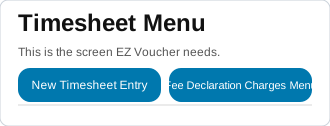
In 2. OIDS Timesheet List, EZ Voucher shows the entries and hours already on that timesheet. Check the case information before continuing.
Choose the file, then load it
- Export the original bill from your billing software in a supported PDF, Excel, or CSV format. Use the original download/export rather than a scan or screenshot.
- Under 1. Billing Source, leave Source on Auto Detect to start. If needed, choose the system the file came from.
- Click Choose File and select the bill. Once its filename appears, click Load Billing File.
- Check Detected source, Source entries, and Source hours against your bill.
Needs review tells you how many entries need attention. Click it to resolve them. Clear removes the loaded bill from the workspace when you are ready to work with another file.
No supported export? Use the EZ Voucher spreadsheet template. See the supported imports for available billing systems.
Tell EZ Voucher how the work should be entered
Open 5. Review Entries. You can review the bill before entering anything, even though this section appears below Bill Entry in the panel.
- Needs Attention: entries that need a decision or correction.
- Missing: entries currently identified as missing from OIDS after reconciliation.
- All Entries: the complete imported list for review.
When an entry needs mapping, choose its OIDS billing type under Enter as, then choose the OIDS work type. Check the description and save the mapping. Review whether the work belongs under In Court, Out of Court, or Paralegal; choose based on the actual work.
When a description choice appears, Description only uses the descriptive portion. Activity + description keeps the activity wording too. Read the preview before saving.
Mapping chooses where an activity belongs in OIDS. A new mapping rule also teaches EZ Voucher how to recognize your office’s wording and separate its activity from its description.
Open Saved Mappings to review, edit, or delete saved choices. Saved choices are reused for matching entries; still review each bill for accuracy.
Create a Mapping Rule
Create a rule to teach EZ Voucher your office’s billing phrases.
- With a bill loaded, click New Mapping Rule beside Saved Mappings in 5. Review Entries.
- Pick an entry from your bill.
- Drag the divider between words, or click a gap. Put the activity on the left and its description on the right.
- Choose Enter as and the OIDS work type.
- When a description is required, choose Description only or Activity + description.
- Check the preview, then click Save Rule.
“Phone conference” will be mapped to TELECONFERENCE and keep the remaining words as the description.
OIDS result:
OC / TELECONFERENCE — with court staff
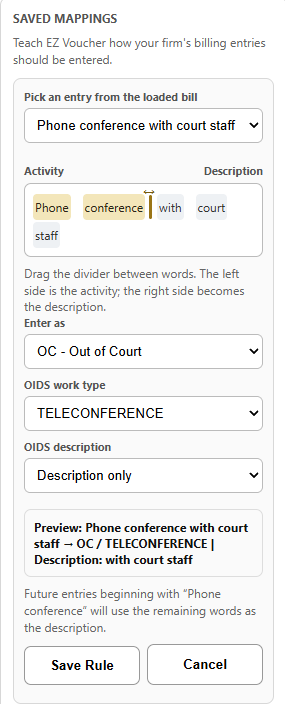
A later entry such as “Phone conference with client” can use the same rule and keep “with client” as its description. Choose Activity + description if you want the entire phrase retained instead.
Rules work across supported billing sources and are saved in this Chrome profile. You can edit or delete them in Saved Mappings.
Split an entry when it contains separate activities
If one source entry combines work that needs separate OIDS entries, use Split Entry during review. Give each piece the correct activity, description, hours, and OIDS selection.
The split hours must add up to the original entry’s hours. For example, a 0.5-hour entry could become 0.2 and 0.3 hours only if that reflects the actual time spent. Do not guess the allocation just to clear a warning.
If a suggested split is unnecessary, use Keep as One Entry when offered. If you save a reusable split rule, review its result on future bills too.
Click Check before starting
- Finish resolving entries that need attention and keep the correct OIDS Timesheet List open.
- In 3. Reconcile, click Check.
- Review Already in OIDS, Missing entries, and Missing hours. Investigate unexpected results before continuing.
- Resolve any case-identity, mapping, or source-total issue the panel identifies, then check again.
Reconciliation compares the loaded bill with the current timesheet so EZ Voucher can identify entries still needed. It is especially useful when resuming a partially entered bill.
Start entry, then review the finished voucher
- In 4. Bill Entry, confirm Ready to enter and Ready hours.
- Click Start / Resume Entry.
- Keep OIDS and EZ Voucher open. Stay with the same case and attorney while entry runs.
- If you need to interrupt the run, use STOP ENTRY. Review the current timesheet and reconcile before resuming.
- When entry finishes, review the OIDS entries, descriptions, hours, and amounts. Complete the final certification and submission yourself.
If Start / Resume Entry is unavailable, look above it for the reason: verification, a loaded bill, completed mappings, the correct Timesheet List, or reconciliation may still be needed.
EZ Voucher does not certify or submit your final Fee Declaration. You remain responsible for the finished voucher.
Manage attorneys and subscriptions
Use the gear in the extension to open Account & Settings. You can also Manage Account on the web when you need account or billing access without opening the extension.
One login for multiple attorneys
Use Add Attorney to add another name and attorney code. Each attorney requires their own subscription. Use Select to choose who you are working for, then open that attorney’s authorized OIDS session and verify the matching code.
Finish or stop the current entry run before switching attorneys. Check “Working as” and the OIDS attorney code each time. A subscription for one attorney does not activate another attorney.
Your trial and subscription
The one-bill trial lets you complete one voucher. Once started, its seven-day window is tied to that original bill; reload the same file to resume. After the trial is completed, subscribe to process another bill.
Use the selected attorney’s subscription controls to subscribe or manage that subscription. Manage Account Billing opens Stripe billing for the account, which can contain more than one attorney’s subscription. Check which subscription you are changing.
A scheduled cancellation can remain Active until its end date. Use Keep Subscription Active when available if you change your mind before it ends. Use Refresh Status after billing changes.
Archive or restore an attorney
Archive Attorney removes an attorney from the active list while keeping their history. Archiving does not cancel a subscription. A renewing subscription must be addressed first; if cancellation is scheduled, review the end date before confirming the archive.
Open Archived attorneys to restore someone later. Restoring an attorney does not create another free trial.
A few quick checks
The attorney code is not verified
Compare the selected attorney in EZ Voucher with the attorney signed into OIDS. Open the matching OIDS session, then click that attorney’s Verify button. Choosing an attorney in EZ Voucher does not sign you into their OIDS account.
The bill did not load correctly
Confirm you clicked Load Billing File after choosing the file. Try the original export from your billing system and check the Source selection. If entries or hours still do not match, stop and contact support with the system name and any error code.
The panel cannot find the timesheet
Return to the correct case’s Timesheet Menu, not the My Cases list or another claim screen. When no entry run is active, refresh OIDS, reopen the panel, and click Check.
A button or feature shown here is missing
Confirm EZ Voucher is enabled in Chrome and that you are using the current Chrome Web Store release. Some controls appear only after loading a bill, selecting an attorney, or meeting the relevant verification or subscription requirement.
Need a hand?
Email support@ez-voucher.com with what you were trying to do and any error/report code. Never send passwords or payment-card details.
Visit Support