
What does mapping do?
Your billing system describes your work in its own words. Mapping tells EZ Voucher which OIDS work type or CJA service type to use for that work.
For example, you might record Phone call with client. In OIDS, you might choose OC — Out of Court → TELECONFERENCE. For CJA, you might choose 16a — Interviews and Conferences. Choose the category that fits the work you actually performed.
Activity and description
Think of the activity as the words that identify the kind of work, and the description as the details that follow. Your bill may have them in separate columns or together as one phrase.
Phone call|with client
The words on the left tell the rule what beginning to look for. The words on the right provide the details.
Map an OIDS entry
- Load your bill. In 2. Review, open Review Entries and Mappings and select an entry that needs attention.
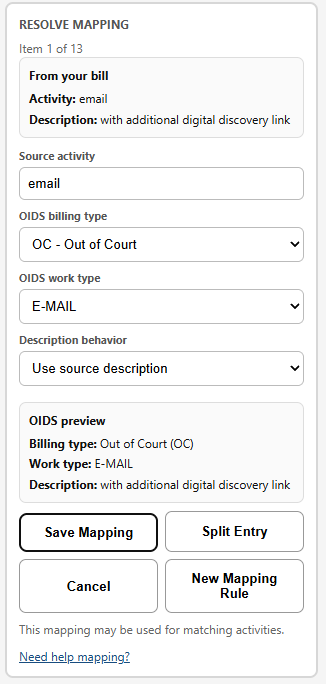
- In Resolve Mapping, check From your bill. Choose the OIDS billing type and work type that fit the entry.
- If the work type requires a description, choose the wording you want and check the OIDS preview. Click Save Mapping.
EZ Voucher uses saved mappings for matching entries. Check the review list to make sure the choices fit. To create a rule from the words in an entry, use New Mapping Rule.
Create a mapping rule
- With a bill loaded, open Review Entries and Mappings and select New Mapping Rule.
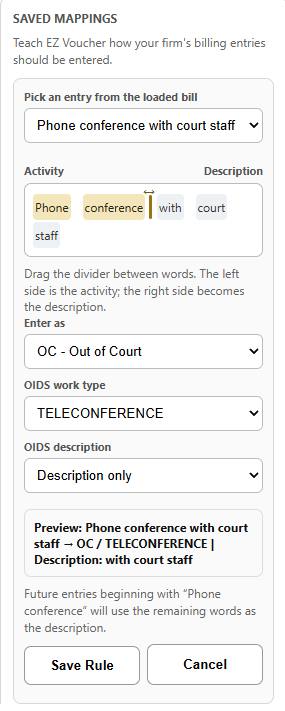
- Pick an entry from the bill. Drag the divider—or click between words—to put the phrase to match on the left.
- Under Enter as, choose the billing type. Choose the OIDS work type.
- When a description is required, select Activity only, Description only, or Activity + description. Check the preview, then select Save Rule.
Choose the description
For an entry written Phone call with client, a divider after Phone call gives these choices:
| Choice | OIDS description |
|---|---|
| Activity only | Phone call |
| Description only | with client |
| Activity + description | Phone call with client |
Some OIDS work types do not use a description; the description choice appears when the selected work type requires one. Check the preview before saving.
See the resolver
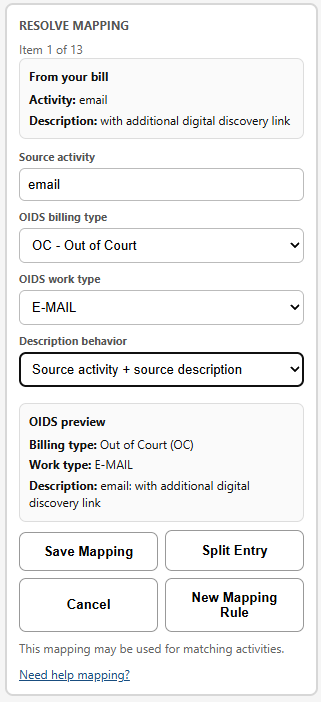
These examples show the same email entry with two different description choices. Check the OIDS preview before saving.
Examples to get started
These are examples, not required categories. Choose the work type and wording that accurately describe your work and meet OIDS requirements.
| Example from a bill | Possible OIDS choice | Description only | Activity + description |
|---|---|---|---|
| Phone call | with client | OC → TELECONFERENCE | with client | Phone call with client |
| Telephone conference | with prosecutor | OC → TELECONFERENCE | with prosecutor | Telephone conference with prosecutor |
| Meeting | with defense team | OC → MEETING | with defense team | Meeting with defense team |
| Letter | to client | OC → LETTER | to client | Letter to client |
| Email | to defendant | OC → E-MAIL | to defendant | Email to defendant |
| Email | chain with prosecutor | OC → E-MAIL | chain with prosecutor | Email chain with prosecutor |
| Jail visit | with client | OC → MEETING | with client | Jail visit with client |
Phone call and Telephone conference begin differently. If you use both phrases, create a rule for each.
Choose Activity + description when you want to preserve the full wording. Check the preview and the matching entries.
Where should the divider go?
The farther right you move the divider, the more words an entry needs at the beginning to match that rule.
Broad: Phone call|with client
This can match entries beginning “Phone call with client” and “Phone call with prosecutor.”
Specific: Phone call with client|about the case
This looks for entries beginning “Phone call with client,” but not “Phone call with prosecutor.”
Use a broad phrase when the same category fits those entries. Move the divider to include more words when you want to make a more specific rule. Always review the preview and matching entries.
Map a CJA service entry
In 2. Review, check the CJA Service Type, date, hours, and description. EZ Voucher may suggest a service type for recognized activities. You can change it to fit the work.
- Load your bill and open Review Entries and Mappings.
- Select New Mapping Rule and choose an entry from the bill.
- Move the divider so the phrase to match is on the left. Choose the CJA service type.
- Choose Activity only, Description only, or Activity + description. Check the preview and the number of matching entries, then select Save Rule.
For CJA, Activity + description is often the best starting point. Review the result and choose the wording that accurately describes your work.
CJA description choices
In New Mapping Rule, choose Activity only (the words before the divider), Description only (the words after it), or Activity + description (the full wording).
When reviewing an individual CJA entry, Description wording offers four choices:
- Activity + description: both parts together.
- Activity only: the activity from the source entry, when available.
- Description only: the source description.
- Custom wording: enter or edit the description yourself.
Check the resulting description before saving. The individual-entry choices and the saved-rule choices appear in different places.
| Example from a bill | Possible CJA service type | Description only | Activity + description |
|---|---|---|---|
| Phone call | with client | 16a — Interviews and Conferences | with client | Phone call with client |
| Meeting | with defense team | 16a — Interviews and Conferences | with defense team | Meeting with defense team |
| Jail visit | with client | 16a — Interviews and Conferences | with client | Jail visit with client |
| Email | to defendant | 16a — Interviews and Conferences | to defendant | Email to defendant |
| Email | chain with prosecutor | 16a — Interviews and Conferences | chain with prosecutor | Email chain with prosecutor |
| Review discovery | produced by government | 16b — Obtaining and reviewing records | produced by government | Review discovery produced by government |
| Legal research | suppression issue | 16c — Legal research and brief writing | suppression issue | Legal research suppression issue |
| Travel | to courthouse | 16d — Travel time | to courthouse | Travel to courthouse |
These examples are starting points. Review each service type and description for your work and your court’s requirements.
Review, change, or delete a saved mapping
- In Review Entries and Mappings, select Saved Mappings.
- Find the activity or phrase. Select Edit to change it or Delete to remove it.
- Review the loaded entries after making a change, and check them again before entry.
What if a rule does not match?
Compare the beginning of the entry with the phrase used for the rule. For example, “Telephone conference” begins differently from “Phone call.” Create another rule for the wording you use, or review the entry individually.
What if one entry contains several kinds of work?
Read the whole entry. If it needs different categories, review the available split option or correct the source bill when appropriate. Confirm how much time belongs to each part rather than guessing.
What if the description is too short?
Try Activity + description to retain the beginning of the entry, or review and edit the wording where the extension allows it. Check that the final description accurately explains the work.
A few helpful habits
- Use consistent activity names in your billing system when practical; it makes saved rules easier to reuse.
- Choose a description option that preserves the details needed to understand the work.
- Review entries that combine activities, contain unfamiliar wording, or need a different category.
- Compare dates, hours, descriptions, and categories with the original bill. Check the finished entries in OIDS or CJA before you certify or submit.